Toon Boom Harmony Stream Deck Profile

V1

All 116 Toon Boom Harmony shortcuts on your Stream Deck: Drawing (21), Draw Tools (20), Timeline (17) + 5 more. One-click install, macOS & Windows.

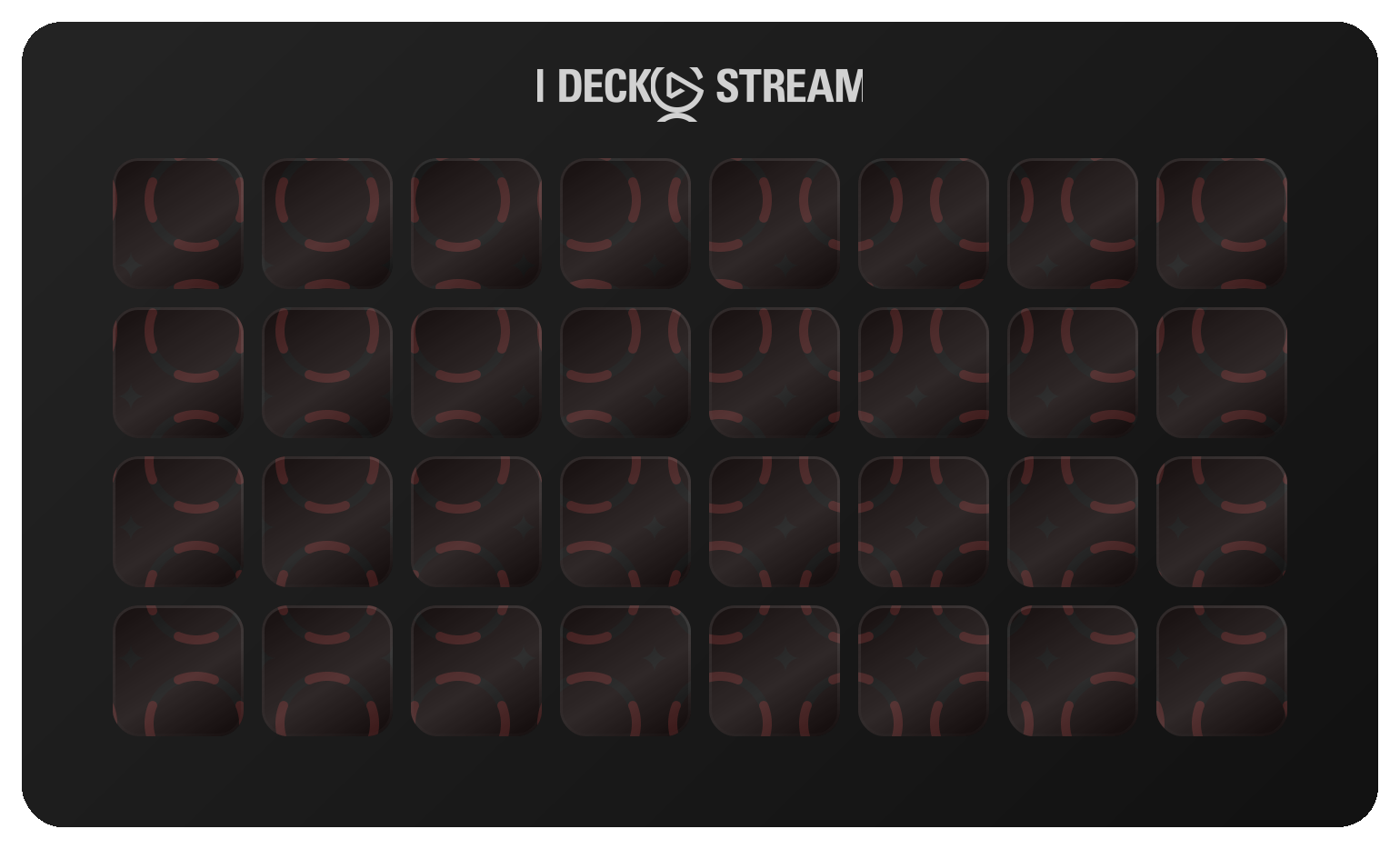
Toon Boom Harmony Stream Deck profile — the store artwork, showing its keys laid out on a deck
116
Shortcuts
8
Groups
macOS · Windows
Platforms
Design
Category

See it on a deck

The first 32 of 116 shortcuts, laid out as they install. Press a key to see what it fires.

€12.99 Get it on Elgato Open this deck on its own page →

This profile's own key art, drawn by the same code that builds the files you install — and a starting point, not a fixed layout. Once it is imported, every key, folder and page is yours to move, rename, re-icon or delete in the Elgato Stream Deck app. What this page cannot be is the rest of the box: one theme of the ones it ships, two Stream Deck models of six, one platform's key combinations, and no dials.

Version history

Every published revision of this profile, newest first — what changed and why, in the maker's own words.

V1 Sep 28, 2026 Latest version

v1.0 — 2026-09-25 — first release. READ OFF TOON BOOM'S OWN SHORTCUT TABLES, HARMONY 27. Every key comes from the nine 'Default Keyboard Shortcuts' pages — and those pages print a macOS column of their own, so the Mac side is Toon Boom's, row by row, including the keys it deliberately keeps on Ctrl. Inside: • Draw Tools (20) — brush, pencil, eraser, select, cutter, contour, centerline, stroke, shapes, text, paint, unpaint, close gap, eyedropper, zoom • Drawing (21) — light table, onion skin and steps, line/colour art, grid, flatten, smooth, rotate, flip, arrange, backlight • Animate (13) — transform, translate, rotate, scale, skew, IK, resets, snap, drawing substitution • Timeline (17) — keyframes, exposure, blank frame, new drawing, pegs, morphing, functions, collapse/expand • Playback (16) — play, frame and drawing steps, first/last, columns, zoom, view resets, full screen • Nodes (11) — enable, disable, groups, pegs, composite, display, navigator • File & Edit (15) — undo, redo, save, open, render, selection, paste special, drawings • Help (3) — Harmony 27 docs, shortcut tables, forum READ THIS FIRST. Harmony sends a key to the view that has focus — click into the view before pressing.

All 116 Toon Boom Harmony shortcuts

Every action in the profile with its key combination, grouped as it is on the device.

Drawing 21

Action macOS Windows
Light Table SHIFT L SHIFT L
Show/Hide Onion Skin ALT O ALT O
Onion Skin: 1 Next CMD 1 CTRL 1
Onion Skin: 1 Previous SHIFT 1 SHIFT 1
Onion Skin: No Next CMD BACKTICK CTRL BACKTICK
Onion Skin: No Previous SHIFT BACKTICK SHIFT BACKTICK
Switch to Line Art/Colour Art L L
Switch to Overlay/Underlay Layer SHIFT SEMICOLON SHIFT SEMICOLON
Show Grid CMD QUOTE CTRL QUOTE
Toggle Protect Colours SHIFT S SHIFT S
Flatten ALT SHIFT F ALT SHIFT F
Smooth ALT SHIFT S ALT SHIFT S
Optimize CMD ALT SHIFT C CTRL ALT SHIFT C
Remove Dirt SHIFT D SHIFT D
Rotate 90 CW CMD 9 CTRL 9
Rotate 90 CCW CMD 7 CTRL 7
Bring To Front CMD SHIFT PAGE_UP CTRL SHIFT PAGE_UP
Send to Back CMD SHIFT PAGE_DOWN CTRL SHIFT PAGE_DOWN
Toggle Backlight ALT SHIFT B ALT SHIFT B
Flip Horizontal 4 4
Flip Vertical 5 5

Draw Tools 20

Action macOS Windows
Brush Tool ALT B ALT B
Pencil Tool ALT SLASH ALT SLASH
Eraser Tool ALT E ALT E
Select Tool ALT S ALT S
Cutter Tool ALT T ALT T
Contour Editor Tool ALT Q ALT Q
Centerline Editor Tool ALT W ALT W
Stroke Tool ALT V ALT V
Line Tool ALT BACKSLASH ALT BACKSLASH
Rectangle Tool ALT 7 ALT 7
Ellipse Tool ALT EQUAL ALT EQUAL
Polyline Tool ALT SHIFT MINUS ALT SHIFT MINUS
Text Tool ALT 9 ALT 9
Paint Tool ALT I ALT I
Unpaint Tool ALT U ALT U
Paint Unpainted Tool ALT Y ALT Y
Close Gap Tool ALT C ALT C
Colour Eyedropper Tool ALT D ALT D
Perspective Tool ALT 0 ALT 0
Zoom Tool ALT Z ALT Z

Timeline 17

Action macOS Windows
Insert Keyframe F6 F6
Delete Keyframe F7 F7
Set Motion Keyframe CMD K CTRL K
Set Stop-Motion Keyframe CMD L CTRL L
Go to Next Keyframe QUOTE QUOTE
Go to Previous Keyframe SEMICOLON SEMICOLON
Extend Exposure F5 F5
Insert Blank Frame SHIFT J SHIFT J
Insert Drawing CMD R CTRL R
Insert Peg CMD P CTRL P
Insert Parent Peg SHIFT P SHIFT P
Create Morphing ALT M ALT M
Show/Hide Functions ALT F ALT F
Collapse All Elements 0 0
Expand All Elements 9 9
Increase Exposure PLUS PLUS
Decrease Exposure MINUS MINUS

Playback 16

Action macOS Windows
Toggle Playback SHIFT ENTER SHIFT ENTER
Next Frame PERIOD PERIOD
Previous Frame COMMA COMMA
First Frame SHIFT COMMA SHIFT COMMA
Last Frame SHIFT PERIOD SHIFT PERIOD
Go to Next Drawing G G
Go to Previous Drawing F F
Go to Next Column J J
Go to Previous Column H H
Zoom In 2 2
Zoom Out 1 1
Reset View SHIFT M SHIFT M
Reset Rotation SHIFT X SHIFT X
Recentre N N
Quick Close-up SHIFT Z SHIFT Z
Toggle Full Screen CMD F CTRL F

File & Edit 15

Action macOS Windows
Undo CMD Z CTRL Z
Redo CTRL SHIFT Z CTRL SHIFT Z
Save CMD S CTRL S
Advanced Save SHIFT CMD S CTRL SHIFT S
New CMD N CTRL N
Open CMD O CTRL O
Render CMD SHIFT Y CTRL SHIFT Y
Preferences CMD U CTRL U
Select All CMD A CTRL A
Deselect All ESCAPE ESCAPE
Invert Selection SHIFT CMD I CTRL SHIFT I
Paste Special CMD B CTRL B
Rename Drawings CMD D CTRL D
Create Empty Drawing ALT SHIFT R ALT SHIFT R
Duplicate Drawings ALT SHIFT D ALT SHIFT D

Animate 13

Action macOS Windows
Transform Tool SHIFT T SHIFT T
Translate Tool ALT 2 ALT 2
Rotate Tool ALT 3 ALT 3
Scale Tool ALT 4 ALT 4
Skew Tool ALT 5 ALT 5
Maintain Size Tool ALT 6 ALT 6
Spline Offset Tool ALT 8 ALT 8
Inverse Kinematics Tool SHIFT I SHIFT I
Reset Transformation R R
Reset All Transformations SHIFT R SHIFT R
Toggle Snap Keyframe X X
Substitute Drawing Next BRACKET_RIGHT BRACKET_RIGHT
Substitute Drawing Previous BRACKET_LEFT BRACKET_LEFT

Nodes 11

Action macOS Windows
Enable Node A A
Disable Node D D
Group CMD G CTRL G
Enter Group CMD ENTER CTRL ENTER
Exit Group CMD SHIFT ENTER CTRL SHIFT ENTER
Create Peg CMD P CTRL P
Create Composite CTRL H CTRL H
Create Display CMD Y CTRL Y
Show/Hide Navigator CMD SHIFT W CTRL SHIFT W
Show All Nodes SHIFT COMMA SHIFT COMMA
Centre on Selection O O

Help 3

Action macOS Windows
Harmony 27 Documentation — —
Default Keyboard Shortcuts — —
Toon Boom Forum — —

Pages per device

116 shortcuts auto-paginate to fit any Stream Deck — one key per page is reserved for navigation.

Mini
24 pages
Neo
17 pages
MK.2
9 pages
XL
4 pages
+
17 pages
+ XL
4 pages

Compare every device →

Toon Boom Harmony profile FAQ

How many shortcuts does the Toon Boom Harmony Stream Deck profile include?

116 shortcuts, grouped into 8 sets: Drawing (21), Draw Tools (20), Timeline (17), Playback (16), File & Edit (15), Animate (13), Nodes (11), Help (3).

Does the Toon Boom Harmony profile fit my Stream Deck?

Yes — it auto-paginates. Mini needs 24 pages, Neo needs 17 pages, MK.2 needs 9 pages, XL needs 4 pages, + needs 17 pages, + XL needs 4 pages.

Can I rearrange the Toon Boom Harmony profile after installing it?

Yes — completely. It installs as 116 shortcuts laid out across as many pages as your device needs, and every one of them is yours from that moment: in the official Elgato Stream Deck app you can drag a key to another slot, rename it, change its icon, group keys into your own folders, add your own actions or delete what you don't use. The layout is a starting point, not a lock.

Which operating systems does the Toon Boom Harmony profile support?

macOS and Windows. Each shortcut ships with its platform-specific key combination, so one profile covers both.

Reviews

Every review here was read and approved by the maker before it was published — good or bad, as written. Nothing is posted automatically.

No reviews of Toon Boom Harmony yet.

Bought Toon Boom Harmony? Leave a review Read by the maker before it's published.

Need help with this profile?

Trouble installing it, a key that fires the wrong thing, or a shortcut Toon Boom Harmony changed in a recent version — that's ours to fix. The form arrives with Toon Boom Harmony already filled in.

The whole video editing bench — 8 profiles, 1,005 shortcuts , 3 icon packs →
Browse all 149 profiles →